
A Customer.io Rate Limit Walks People Past Messages It Hasn't Sent Yet. The Fix Is a Checkbox With a 24-Hour Fuse
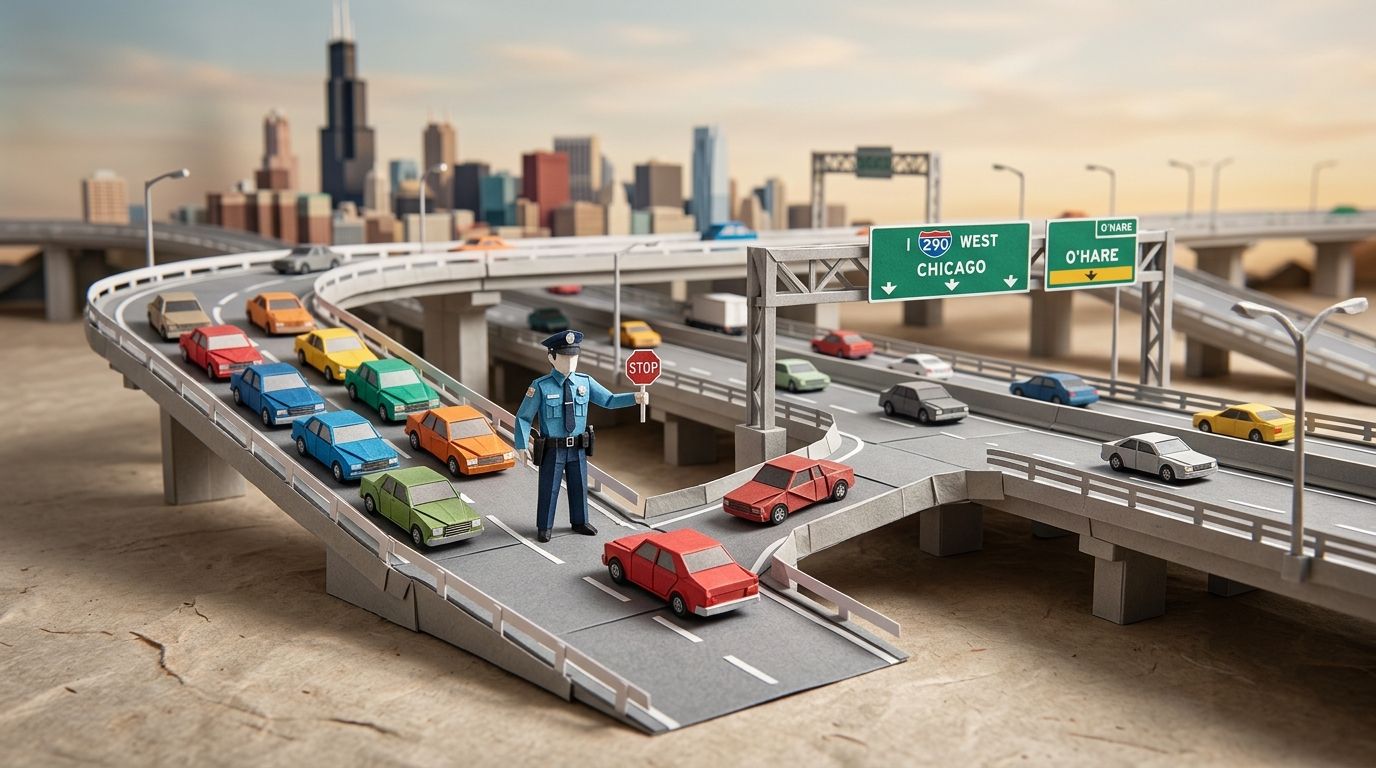
In 1963, on Chicago's Eisenhower Expressway, a police officer stood on an entrance ramp and stopped traffic. He released cars one at a time, at a rate set by a pilot detection programme. It was the first ramp meter anywhere, and it looked like a downgrade: drivers who could previously join the motorway at will now had to queue on the slip road.
It worked. Holding cars back at the ramp kept the mainline below the density at which traffic collapses, so the road moved more vehicles per hour, not fewer. Los Angeles followed in 1968, and the FHWA's own benefits table later credited metering with a 25% increase in peak-period volume in Minneapolis and a 74% increase in Seattle. The engineering insight is one sentence long: a queue you hold is throughput, a queue you discard is loss.
Customer.io shipped ramp metering for your automations on 6 August 2026. It holds the messages, as a meter should. By default, it does not hold the people: they carry on through the workflow while their message waits its turn.
TL;DR:
- A Customer.io rate limit controls how fast one automation sends email, SMS, push and webhooks, from 1 to 60,000 messages per minute per channel. It is a per-automation setting, not a workspace cap, and it is not a frequency cap.
- By default, the profile does not wait for its message. The message waits in a backlog and sends at the rate you set, but the profile moves on: "If a message isn't sent due to a rate limit, people still continue forward in your workflow."
- The fix is Wait before continuing journey, set per message. It is not a guarantee: "If 24 hours pass, the person continues on its journey."
- So the wait protects at most 1,440 messages for every 1 per minute you allow. Below roughly 35 messages a minute, a 50,000-profile send outlives the wait and people move on before their message has gone out anyway.
- Raise the limit on a live automation and the backlog goes out at once: Customer.io warns of "a sudden burst in sent messages".
- Tick the box on any message a later step reads. Leave it off for standalone nudges. And set the number from your audience size, not from a round figure that feels safe.
Update (October 2026): this post first said a rate-limited message is dropped and never retried. Customer.io's current docs say it waits in a backlog and sends at the rate you set, and the post now follows them. The advice on Wait before continuing journey stands.
A rate limit controls sending speed, not fatigue
Rate limiting caps the sending speed of a single automation. Customer.io's automation concepts and settings page puts it plainly: "Rate limiting lets you control how fast a single automation sends email, SMS, push, and/or webhooks. This is a per-automation setting, not a workspace cap."
You set it inside the workflow, not in workspace settings. Open the automation, click > Message settings, and set a limit for each channel between 1 and 60,000 messages per minute. (If the word automation still reads as campaign to you, Customer.io renamed the object: we covered what changed and what didn't.)
The release note gives two reasons to use it: "to protect your email sender reputation or to prevent overwhelming your downstream systems". Both are real. A sudden volume spike from a cold or half-warmed domain is one of the faster ways to earn a reputation problem. It is why Customer.io built a daily ramp for domain warming. It is also why bursts are dangerous: Google asks bulk senders to "keep spam rates reported in Postmaster Tools below 0.10%", a ceiling we broke down for Customer.io senders specifically. A webhook action that fires 20,000 times a minute at an API built for 200 is the other half of the problem.
What a rate limit does not do is protect the recipient. That is a different feature with a different scope. The docs draw the line themselves: "While a rate limit determines how fast a single automation can send messages, a message frequency limit determines how often your workspace can send messages to a single person." If your concern is fatigue rather than throughput, you want channel-based message limits, or the wider suppression and frequency playbook.
The two features also cover different channels, and the gaps matter.
| Channel | Rate limit? | Message frequency limit? | Recorded when a cap blocks the send |
|---|---|---|---|
| Yes | Yes | Frequency limit: Undeliverable. Rate limit: held in a backlog, not blocked | |
| SMS | Yes | Yes | Frequency limit: Undeliverable. Rate limit: held in a backlog, not blocked |
| Push | Yes | Yes | Frequency limit: Undeliverable. Rate limit: held in a backlog, not blocked |
| Webhooks | Yes | Yes | Frequency limit: Undeliverable. Rate limit: held in a backlog, not blocked |
| No, unless sent via Twilio, where the SMS limit applies to both | Yes | Frequency limit: Undeliverable | |
| LINE | No | Yes | Frequency limit: Undeliverable |
| In-app | No | No | Neither cap applies |
| Slack | No | No | Neither cap applies |
Sources: automation concepts and settings for the rate-limit column, message frequency limits for the rest. The Twilio carve-out is worth reading twice: "if you send both SMS and WhatsApp through Twilio, then the rate limit for SMS applies to both message channels". Set a cautious SMS limit and you have silently throttled WhatsApp too. And if you have moved off Twilio to another SMS provider, that coupling disappears without anyone telling you.
The default advances people past messages that have not sent yet
Here is the sentence the release note left out, from the docs page it links to: "If a message isn't sent due to a rate limit, people still continue forward in your workflow."
Read it next to the rest of the docs and the mechanism is clear. The message is not dropped: it waits in a backlog and goes out at the rate you set. A rate-limit alert on the workspace performance dashboard "explains that its messages are going out at the rate you configured". Raise the limit on a live automation and the queue can go out as "a sudden burst in sent messages". What does not wait is the profile. It moves to the next node on time, while its message is still in the queue.
Compare the frequency-limit path, where the message can be lost outright. When someone hits a message limit, the workflow "records the message as Undeliverable, unless you enabled a retry window". With a retry window on, Customer.io logs the message as Attempted and keeps trying for up to 48 hours. Meanwhile the person "waits at that step in their journey". Either way you get a status, a count, and something to filter on.
The rate-limit path leaves a different trail. Customer.io's automation and broadcast metrics documentation defines Sent, Delivered, Opened, Clicked, Converted, Unsubscribed, Failed, Bounced, Suppressed and Marked as spam. Failed is defined narrowly: "A failed message never made it to the delivery provider". A rate-limited message has not failed: it is waiting, and no documented message status covers that wait. The documented signal is on the workspace performance dashboard, where an alert names the rate-limited automation. If you want to know what your own workspace shows, send a small test through a deliberately tight limit and look; do not assume a report will tell you.
That is what makes it easy to miss. Nothing failed, so the journey looks healthy. But every step after the message runs on the workflow's clock, not the message's. A branch that checks for an open, a goal, the next message on another channel: each can act before the send.
Wait before continuing journey is a fuse, not a guarantee
Customer.io shipped the fix alongside the feature. From the release note: "To account for rate limits, you can now enable Wait before continuing journey for any message to make sure people receive your messages before moving forward in your automation."
You turn it on per message, not per automation. Click the message block or the Send and receive data (webhook) block, open Settings, and switch on Wait before continuing journey. The journeys documentation describes the behaviour: "If you want people to wait in an automation until a message or webhook is sent or all retries are exhausted, then adjust the action's settings."
Then comes the part nobody quotes: "This setting does not hold people indefinitely in your workflow. If 24 hours pass, the person continues on its journey."
So the checkbox does not close the hole. It narrows it to 24 hours, and hands the rest of the job to the number you typed into the rate limit. The arithmetic is unforgiving and it is the same every time: a rate limit of n messages per minute clears at most 1,440 × n messages before the wait expires. At 1 per minute, the documented floor, that is 1,440 messages. At 500 per minute it is 720,000.
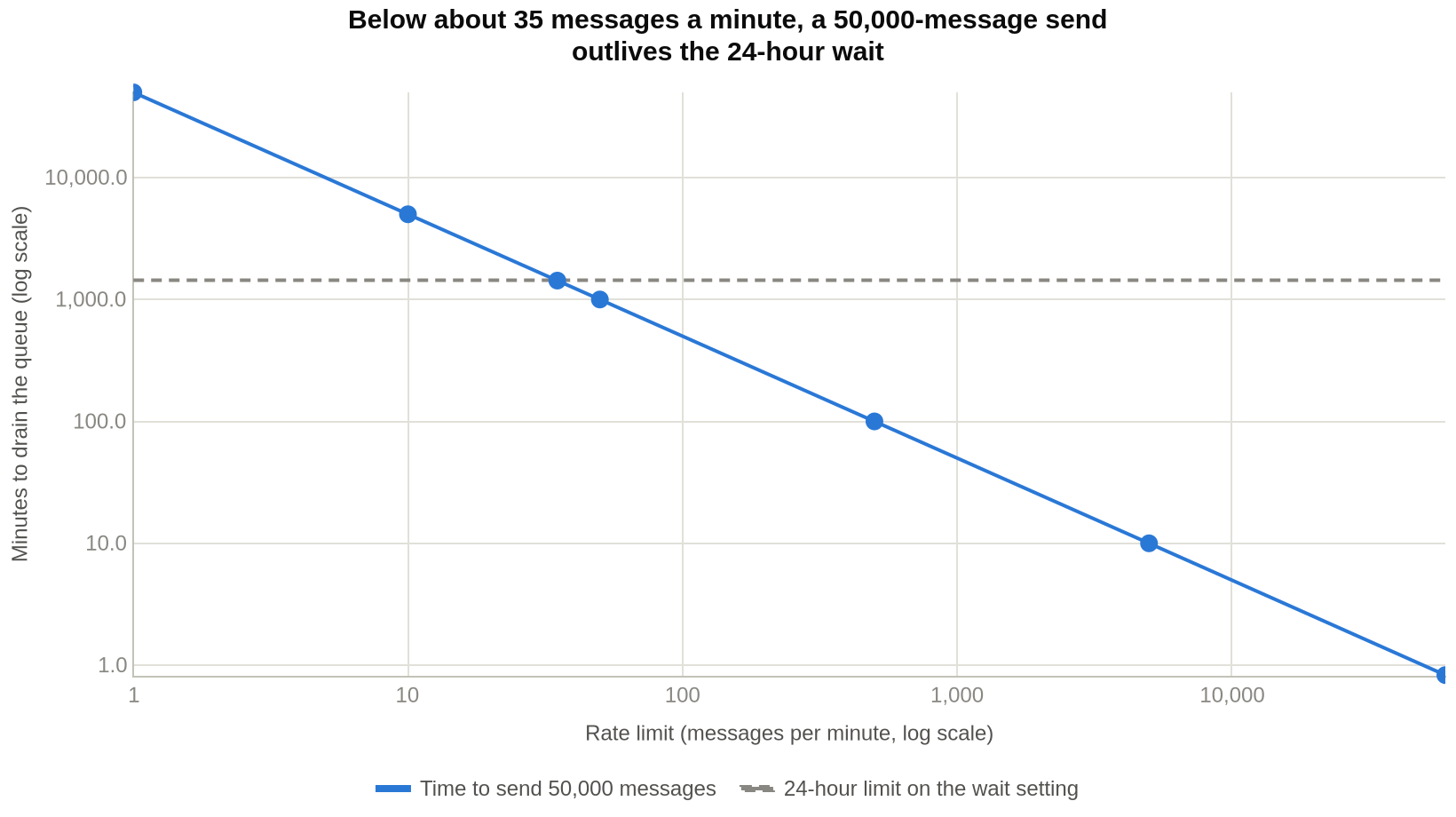
| Rate limit (messages/min) | Time to send 50,000 messages | Inside the 24-hour wait? |
|---|---|---|
| 60,000 | 50 seconds | Yes |
| 5,000 | 10 minutes | Yes |
| 500 | 1 hour 40 minutes | Yes |
| 50 | 16 hours 40 minutes | Yes |
| 35 | 23 hours 49 minutes | Only just |
| 10 | 3 days 11 hours | No |
| 1 | 34 days 17 hours | No |
Two things follow. First, the tight limits people reach for when they are nervous (1, 5, 10 a minute) are the ones most likely to blow through the wait on any audience worth automating for. Second, if your automation is triggered by a segment that adds thousands of profiles at once, the queue is the whole segment, not the trickle you pictured.
Tick the box only where something downstream reads the message
Per message, not per automation. The test is whether anything downstream reads that message.
Tick it when:
- A later branch depends on the send. Any condition of the form opened, clicked or did not respond within three days is a lie if the message has not gone out yet. The profile reaches the branch before its message does and lands in the not-engaged path by default.
- The workflow hands over to another automation. If you have split a long workflow into smaller workflows linked by a send event, the profile can start part two while part one's message is still in the queue.
- A goal or exit condition hangs off it. A profile that has moved on can meet the goal or exit before its message sends. The docs do not say what happens to the queued message then. While you are in there, an exit-condition audit is worth the half hour.
- The message carries something the customer needs: a code, a confirmation, an expiring offer, a shipping update.
Leave it off when:
- The message is a standalone nudge and nothing reads it.
- The automation is genuinely time-sensitive in the other direction. The wait does not make the message send any sooner; it holds the profile, so every later step slips with it. On an abandoned-cart flow, that can cost more than the ordering is worth.
- You are rate limiting webhooks purely to be polite to a downstream API that you know retries on its own.
The honest caveat: turning the wait on for every message in a rate-limited automation makes the whole workflow move at the speed of its slowest channel, and delivery windows stretch. That is the trade. Buy the guarantee where a later step needs it, not everywhere.
Set the number from your audience, not from a figure that feels safe
Start from the queue, not from a round figure. Divide the biggest audience the automation can enqueue at once by 1,440 to get the floor that keeps the send inside the wait window: 50,000 profiles needs 35 a minute, 500,000 needs 348. Then set the limit as high as your sender reputation and your downstream systems will take, and only lower it if there is a specific pressure you are managing.
For domain warming, the daily ramp is the right tool and a rate limit is a blunt substitute. For a webhook, take the documented rate of the receiving API and set the limit under it. For email on a mature domain, a rate limit is usually a safety net rather than a schedule.
This only bites at scale. When we consolidated Kip's two Customer.io workspaces into one, we merged 200,000+ profiles and 80+ live campaigns with zero disruption. A workspace that size is exactly where someone eventually sets a protective rate limit on a big re-engagement send. On the reporting side, our migration work with AIRE Health took campaign conversion from 7.0% to 17.8%, and a good part of that job was making the numbers mean something. A default that lets the journey run ahead of its own messages is the enemy of both.
If you would rather have someone audit your automations for this than do it yourself, that is what our Customer.io team does.
The audit worth running before your next big send
- List every automation with a rate limit set. They are per automation, so there is no single settings page to check.
- In each one, find the messages that something downstream reads: branches on engagement, send-event triggers, goals, exit conditions.
- Turn on Wait before continuing journey for those messages.
- Divide the largest possible enqueued audience by 1,440. If the rate limit is below that number, raise it or accept that people will move on before their message sends once the 24 hours run out. If you raise it on a live automation, expect the backlog to go out at once.
- Check the Twilio coupling. If SMS and WhatsApp both run through Twilio, your SMS limit is governing both.
- Send a test through a deliberately tight limit and look at what the metrics and the workspace performance dashboard actually show. Then you know, rather than assume.
If that audit turns up more than you want to unpick on a Friday afternoon, tell us what you're running and we'll go through it with you.
Frequently asked questions
Does a Customer.io rate limit skip messages?
No: a rate limit delays messages rather than skipping them, but by default the profile does not wait for its message. The documentation states: "If a message isn't sent due to a rate limit, people still continue forward in your workflow." The message waits in a backlog and goes out at the rate you set, while the profile advances to the next step as though it had been sent. Enabling Wait before continuing journey on that message holds the profile there for up to 24 hours.
Is a rate limit the same as a frequency cap in Customer.io?
No. Customer.io's docs separate them: a rate limit "determines how fast a single automation can send messages", while a message frequency limit "determines how often your workspace can send messages to a single person". A rate limit protects your sender reputation and your downstream systems. A frequency limit protects the recipient from being messaged too often.
Is the rate limit per automation or per workspace?
Per automation. The docs are explicit: "This is a per-automation setting, not a workspace cap." You set it inside the workflow by clicking > Message settings, and each channel gets its own limit. It is not in workspace settings, so auditing means opening each automation. Message frequency limits, by contrast, are set at the workspace level.
What is the maximum rate limit in Customer.io?
You can set between 1 and 60,000 messages per minute for each channel. The floor of 1 per minute is a genuine setting, and it is slow enough that any sizeable audience will outlive the 24-hour wait window.
Can I rate limit WhatsApp, in-app, LINE or Slack messages?
No. The docs say: "you can't set a rate limit for WhatsApp, in-app, LINE, or Slack messages". There is one indirect exception: "if you send both SMS and WhatsApp through Twilio, then the rate limit for SMS applies to both message channels". So WhatsApp sent through Twilio inherits your SMS limit whether you intended that or not.
What does Wait before continuing journey actually do?
It holds a profile at a message or webhook block until the action sends or all retries are exhausted, instead of letting them continue immediately. You enable it per message, in the block's Settings. It applies to message blocks and to Send and receive data (webhook) blocks, and Customer.io recommends it specifically for rate-limited automations.
What happens when the 24 hours run out?
The profile carries on before its message has sent. The documentation is direct about it: "This setting does not hold people indefinitely in your workflow. If 24 hours pass, the person continues on its journey." That is why the rate-limit number matters as much as the checkbox. If the queue cannot drain in a day, the wait expires and the journey runs ahead of the message again.
Does the rate limit apply to API-triggered broadcasts?
The release note says it does: "You can now add a rate limit per channel for each of your automations and API-triggered broadcasts." The automation settings page describes rate limiting only as a per-automation setting, and the API-triggered broadcasts page does not mention it. The workspace performance dashboard page names both: "a rate limit you set on an automation or API-triggered broadcast". The separate published limits on the broadcasts page are unrelated: you cannot trigger a broadcast more than once every 10 seconds, and you cannot have more than five queued for the same broadcast.
Sources
- Customer.io, "Control how fast your automations send messages", release notes, 6 August 2026.
- Customer.io, Automation concepts & settings, updated 14 September 2026.
- Customer.io, Pause journeys if they haven't received a message, updated 14 September 2026.
- Customer.io, Workspace performance dashboard, updated 29 September 2026.
- Customer.io, Change the rate limit for an automation, updated 14 September 2026.
- Customer.io, Message frequency limits, updated 5 October 2026.
- Customer.io, Automation and broadcast metrics, updated 14 September 2026.
- Customer.io, API-triggered broadcasts, updated 28 September 2026.
- Google, Email sender guidelines, Gmail Help.
- Federal Highway Administration, Ramp metering, Office of Operations; benefits table sourced to the FHWA Ramp Management and Control Handbook, 2006.
- Gary Piotrowicz and James Robinson, Ramp Metering Status in North America: 1995 Update, Federal Highway Administration and Federal Transit Administration, June 1995.
- Gary Richards, "The man who invented metering lights", East Bay Times, 3 August 2018.
Want this working in your Customer.io workspace?
It's what we do all day for SMBs—strategy, automations, deliverability and hands-on execution.
See how we work as a Customer.io agency →