
The Complete Guide to Customer.io Design Studio: Components, Brand Consistency, and Responsive Email Design
TL;DR: Customer.io's Design Studio has been in beta since May 2025 and is still the only Customer.io editor built around a proper component system: standard components that inherit your brand's Global Styles automatically, and custom components you lock down or leave editable. It also runs a built-in accessibility checker (Deque's axe rules) at a time when 99.89% of HTML emails fail serious or critical accessibility checks, supports dark mode and MJML, and lets you switch between drag-and-drop and code in the same file. If you're still rebuilding your header and footer from scratch every campaign, a component library pays for itself after a handful of sends.
The Bauhaus Moment That Changed Design Forever
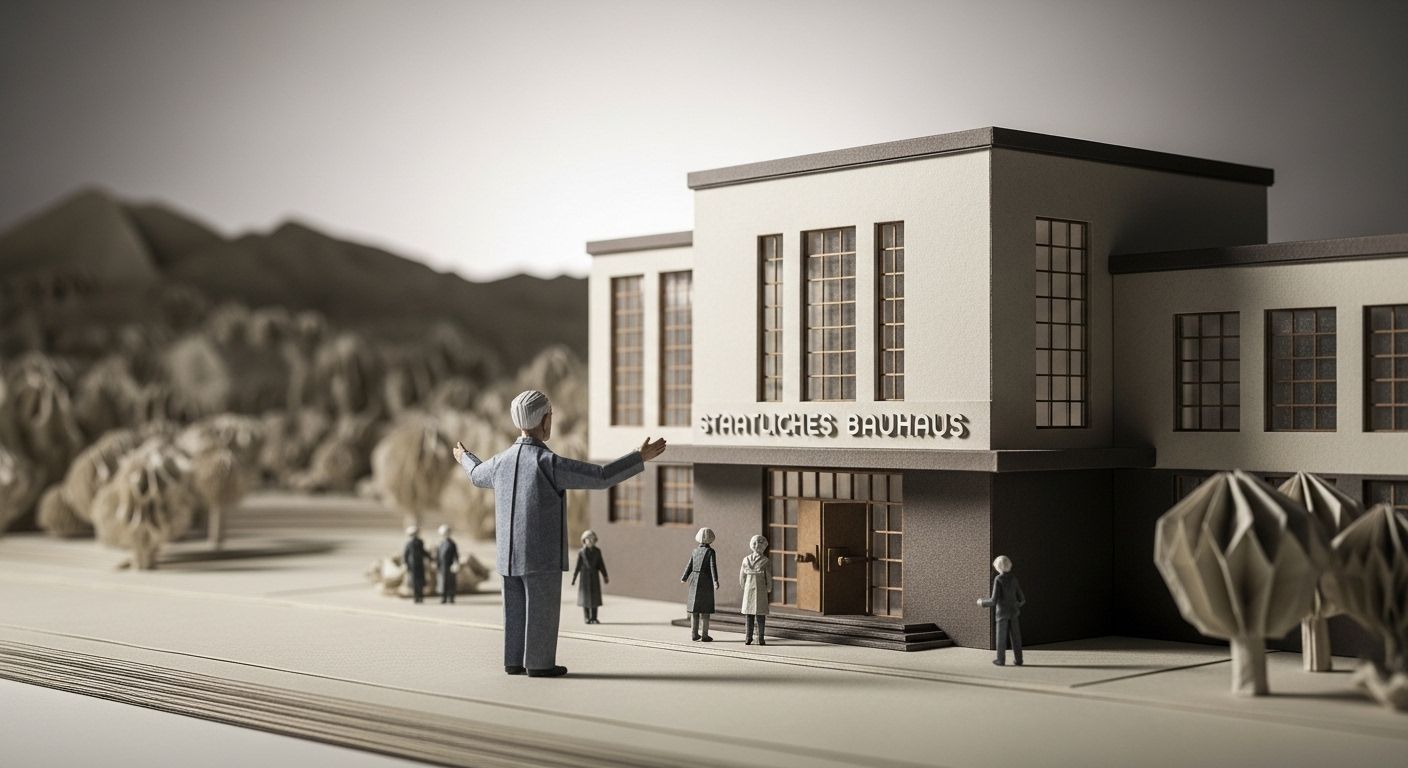
On April 1, 1919, a German architect named Walter Gropius opened the doors of a radical new school in Weimar, Germany. He called it the Staatliches Bauhaus — "house of building." His founding manifesto declared one sweeping goal: tear down the wall between art and craft.
Before Bauhaus, fine artists and functional craftsmen worked in entirely separate worlds. Painters painted. Weavers wove. Nobody talked to each other. Gropius's insight was that the best outcomes come when creators work from a shared system — common materials, common principles, a unified vision.
In 14 years, Bauhaus transformed furniture, typography, architecture, and product design. Its legacy still shapes the screens you look at every day.
Here's the thing: most email marketing teams operate exactly like pre-Bauhaus art schools. Designers work in one tool. Developers work in another. Templates live in inboxes and Slack messages. Brand guidelines are a PDF nobody's updated since 2021.
That's the problem Customer.io's Design Studio was built to solve.
What Is Customer.io Design Studio?
Design Studio is Customer.io's newest email editor, launched in beta in May 2025. It's a flexible email design system — not just a drag-and-drop builder.
Here's what makes it different:
- Both editors in one: switch between drag-and-drop visual editing and raw HTML/CSS in the same interface
- Reusable component library: build once, reuse everywhere, update globally
- Global Styles: set your brand colours, fonts, spacing, and button styles once — they cascade across every email
- Built-in collaboration: team visibility, comments, version control, and draft/publish workflow
- Accessibility checking: powered by Deque University's axe rules, built directly into the editor
Over 9,000 brands trust Customer.io to send data-powered messaging every day. Design Studio is where those messages get built.
What Are the Two Types of Components in Design Studio?
This is the foundation of everything. Before you touch a single email, understand the component system.
Standard Components
These are Customer.io's pre-built building blocks — headings, paragraphs, images, buttons, columns, dividers, and sections. Standard components automatically inherit your global styles. Drop a button onto the canvas and it picks up your brand's button colour and font.
Change a global style later and every button in every email updates. You can also override styles on individual components without breaking global settings — consistency and flexibility in the same system.
Custom Components
Custom components are reusable blocks you build. They're the secret weapon for teams that want to scale.
A custom component could be:
- A locked header with your logo and navigation
- A product card with variable fields for image, name, and CTA
- A footer with legal copy and unsubscribe link
- A promotional banner where only the offer text changes
You create custom components three ways:
- From the visual editor: build a block, save it as a component. Done in seconds. Great for non-technical marketers.
- With your own code: write the component using Customer.io's templating language. Full control over properties, slots, and locked/editable areas.
- Using the Design Studio GPT: describe what you want in plain English and let AI generate the component code.
When you edit a custom component's source file, the change cascades to every email that references it. Update your footer once, and it updates everywhere — instantly.
How Do Global Styles Work in Design Studio?
Global Styles are your brand's single source of truth inside Customer.io. Think of them as the design token system for your email programme. You define:
- Colour palette — your hex values, named and saved
- Typography — font family, sizes, and weights for headings, paragraphs, and links
- Button formatting — colours, border radius, padding
- Spacing and radii — consistent padding and corner rounding
Once set, every standard component and custom component that references global styles stays on-brand automatically. No hunting through emails to find where someone hardcoded the wrong hex value.
Global Styles also apply beyond email, to in-app messages, SMS, and WhatsApp messages you build in Design Studio. One brand configuration spans your entire Customer.io workspace.
Pro tip: name your colours semantically, not literally. brand-primary ages better than cobalt-blue. When your brand refreshes, update one variable and everything updates.
Why Does Brand Consistency Actually Matter for Email?
This isn't just about aesthetics. It's a revenue issue.
A brand consistency survey of over 400 brand managers found that businesses expect 10–20% higher growth when their brand presentation stays consistent across every channel, including email.
The mechanism is trust. When someone opens an email that matches the website they just bought from — same fonts, same colours, same layout rhythm — their brain registers it as legitimate. Off-brand emails trigger a different instinct: is this phishing?
A 2025 Mailjet report found that 75.4% of consumers prefer promotional messages via email. But 25% will unsubscribe if emails feel irrelevant or inconsistent with the brand they signed up for.
Design Studio's Global Styles directly attack this problem. You can't accidentally go off-brand when the brand is baked into the system.
How Do You Build a Component Library in Design Studio?
Building a proper component library is a one-time investment that pays back every time someone creates a new email.
Step 1: Audit What You Actually Send
Look at your last 20–30 emails. What blocks appear in every message? Header, footer, CTA button — those are your first custom components. What blocks appear often? Hero images, product cards, testimonial blocks — those come next.
Step 2: Build Locked Components for Non-Negotiables
Headers and footers should be locked. Legal copy and logo placement shouldn't change per email. Build these as locked custom components with no editable slots — when a teammate drags one in, they get the block exactly as designed.
Step 3: Build Flexible Components for Reusable Patterns
Product cards, testimonials, and feature sections need some editability. Use properties and slots to define exactly which parts teammates can change — the image, the headline, the CTA text — while locking the structure and styling.
This is the Bauhaus principle in action. You're building a shared system that designers, developers, and marketers all work from.
Step 4: Organise Into Categories
Use the Insert menu categories to keep things findable. Group by type: Structure, Content, Promotions, Transactional. Your team will thank you.
Step 5: Document As You Go
Add descriptions to component files. Future-you and future-teammates need to know what each component is for and what they can or can't edit.
Drag-and-Drop vs. Code: Which Should You Use?
Design Studio's headline feature is that you don't have to choose. The visual editor and code editor coexist in the same file. Switch between them freely.
But different situations call for different approaches.
When to Use the Visual Editor
- You're working fast: drag components, swap content, publish. No code review required.
- Non-technical teammates are building: marketers can create and edit emails without touching HTML.
- You're using standard layouts: most campaigns don't need bespoke code.
- You're managing templates: save emails as templates so everyone starts on-brand.
Visual editor tips:
- Use the Layers panel to select nested elements without clicking around the canvas.
- Use Inspect & Focus Mode to highlight any element and jump to its code — great for debugging.
- Enable dark mode preview with the moon toggle.
- Toggle desktop/mobile view to check responsive behaviour before sending.
When to Write Code
- You need pixel-perfect control: custom layouts, unusual spacing, edge-case styling.
- You're building custom components: component logic must be written in code.
- You're importing existing emails: paste in HTML and work from there.
- You're using MJML: Customer.io is an officially listed MJML editor. Append
.mjmlto your file and the editor handles the rest.
Code editor tips:
- Use Emmet abbreviations to write HTML faster.
- Use auto-complete for component tags.
- Check Can I Email data directly in the editor to see CSS support across email clients.
- Run SpamAssassin to flag deliverability issues before sending.
- Use Transformers to minify, prettify, or strip unused CSS in one click.
The Hybrid Approach (Recommended)
- Build your component library in code (or with the GPT)
- Build individual emails in the visual editor using those components
- Switch to code only when you need to fine-tune something specific
This gives non-technical teammates full autonomy while keeping a developer-controlled design system underneath.
How Does Responsive Design Work in Design Studio?
Responsive email design isn't optional. Mobile is still where most subscribers read their email, and a layout that breaks on a phone screen gets deleted, not scrolled past.
Design Studio handles responsiveness at multiple levels.
Responsive Standard Components
Every standard component includes responsive options in the Properties panel:
- Show or hide components on desktop or mobile separately
- Set column stacking behaviour for multi-column layouts
- Define mobile-specific font sizes and spacing
Responsive Custom Components
In custom component code, write responsive styles using @media queries. For email clients like Thunderbird that don't support @media queries, use the media attribute within an isolated <style> tag in your component.
Dark Mode Support
Dark mode is increasingly the default on mobile. Design Studio's dark mode support works at two levels:
- Global dark mode styles in Styles — define your dark palette once
- Component-level dark mode — override individual component colours for dark backgrounds
Design Studio uses @media (prefers-color-scheme: dark) under the hood. Preview dark mode and forced dark mode directly in the editor with the moon toggle.
Dark mode best practice: avoid background images directly behind text. In forced dark mode (like Gmail), the image may disappear while text inverts — making it unreadable. Use a solid background colour as a fallback.
MJML for Responsive Emails
If your team already uses MJML, keep your workflow. Import .mjml files and work with them directly in Design Studio. MJML's responsive grid handles column stacking and mobile sizing automatically.
What Are the Collaboration Features in Design Studio?
Design Studio was built for teams. Here's what collaboration looks like in practice.
Team visibility: when a teammate is already editing an email, Design Studio shows you. You won't overwrite each other's work.
Version control: save named versions as you build. If someone requests a change that makes things worse, revert to any previous state.
Comments: leave notes directly on the email. Stakeholders can review and give specific feedback without it getting lost in Slack.
Draft and publish workflow: make changes in draft mode and only push them live when ready. Iterate on a live template without breaking active campaigns.
Templates: save any email as a template. When a new campaign starts, teammates begin from an on-brand, pre-tested foundation — not a blank canvas.
This workflow maps directly onto how we build campaigns at NerveCentral — where the email system needs to scale across multiple campaign types without requiring a full design review on every send.
How Do You Handle Accessibility in Design Studio Emails?
Here's a number that should concern every email marketer: according to the Email Markup Consortium's 2025 Accessibility Report, 99.89% of HTML emails contain accessibility issues rated Serious or Critical. Of 443,585 emails analysed, only 21 passed all automated checks.
Design Studio addresses this with a built-in accessibility checker powered by Deque University's axe rules.
The Most Common Email Accessibility Failures
The EMC 2025 report identifies the top issues:
| Issue | Found in | Severity |
|---|---|---|
Missing dir attribute |
98.14% of emails tested | Serious |
Missing lang attribute |
96.67% | Serious |
| Missing alt text on images | 51.42% | Critical |
| Non-descriptive link text ("click here") | 17.62% | Moderate |
| Poor colour contrast below WCAG 4.5:1 | 59.37% | Serious |
| Missing H1 element | 76.78% | Mild |
How to Fix Them in Design Studio
Alt text: every image component has an alt text field. Decorative images should have alt="" so screen readers skip them.
Heading hierarchy: use the Heading component, not styled paragraph text. Design Studio generates proper semantic <h1>, <h2>, <h3> tags that screen readers parse correctly.
Colour contrast: Global Styles defines your colours. Run the accessibility checker before sending to flag any combinations below WCAG ratios.
Link text: never use "click here." Write descriptive anchor text: "Download the 2025 report" or "View your order details."
ARIA landmarks: the Box component lets you add ARIA landmarks (article, region, navigation) via the Properties panel. Screen readers use these to navigate email content.
lang attribute: set the language on the Base component in settings. The visual editor exposes this directly.
Accessibility and Deliverability Are Connected
Accessible emails tend to reach the inbox more reliably. Clear text hierarchies, descriptive links, and well-structured HTML are signals that spam filters associate with legitimate email. It's not just the right thing to do — it helps your campaigns perform.
For more on deliverability fundamentals, see our Complete Email Deliverability Guide.
How Does Design Studio Integrate with Customer.io Journeys?
Every Design Studio email connects directly to one automation — a campaign, broadcast, or transactional message — inside Customer.io Journeys. Your email design and automation logic live in the same platform. No exporting, no importing, no version drift.
For teams building lifecycle email sequences or behaviour-triggered journeys, this is significant. Build the email and the automation side by side, using the same data layer for personalisation and delivery logic.
Design Studio also supports AI-powered translation. If you send to multilingual audiences, Auto-translate can handle the copy across languages. Translations map to the language preference attribute on each person's Customer.io profile.
Tips for Getting the Most Out of Design Studio
For Marketers
- Start from templates: never build from scratch if a template exists
- Use the Design Studio GPT: describe a component in plain English and drag it in — pairs brilliantly with Customer.io Liquid personalisation
- Check dark mode before every send: 30 seconds with the moon toggle saves you a wave of broken-email complaints
- Run SpamAssassin: it takes 5 seconds and could protect your sender reputation
For Developers
- Define component relationships: use
allowedParentsin component config to enforce where components can be placed - Reference global styles in component code: use
globalStyles.colors.your-tokeninstead of hardcoding hex values - Use MJML for complex layouts: if your team has MJML experience, keep using it
- Version your components: before making breaking changes to a widely-used component, save a version first
For Teams
- Define who owns the design system: someone needs to manage Global Styles and the component library. Without ownership, libraries drift.
- Accessibility check is part of QA: treat it like checking Gmail rendering — non-negotiable before every launch
- Keep feedback in Design Studio: comments attached to the design beat Slack threads that nobody finds later
How Does Design Studio Compare to Customer.io's Classic Editors?
Customer.io offers four email editors. Here's when each makes sense:
| Editor | Best For | Tradeoff |
|---|---|---|
| Design Studio | Teams wanting a full design system with components, global styles, and collaboration | Upfront setup investment |
| Drag-and-Drop | Quick campaigns without coding, simple layouts | Less control, no custom components |
| Rich Text / WYSIWYG | Simple text-heavy emails | Limited design control |
| Code | Full HTML control, importing existing templates | Developer-only, no visual preview |
For most growth-stage and enterprise teams, Design Studio is the right long-term investment. The component library and global styles pay dividends with every email you send after initial setup.
Frequently Asked Questions
What is Customer.io Design Studio?
Design Studio is Customer.io's email design system, launched in beta in May 2025. It combines a visual drag-and-drop editor, a full HTML/CSS code editor, a reusable component library, global brand styles, and built-in collaboration tools in one interface.
Who can access Design Studio?
Design Studio is available across Customer.io workspaces. Workspace Admins and Authors get full access to build and publish. Viewers can only view.
What is the difference between a standard component and a custom component?
Standard components are Customer.io's pre-built blocks: headings, paragraphs, buttons, images, columns, dividers, and sections. Custom components are blocks you build yourself — using code, the visual editor, or the Design Studio GPT — that can be locked or flexible depending on how you code them.
How do you create a locked header and footer in Design Studio?
Build your header or footer using standard components in the visual editor. Save it as a custom component. Because you're saving from the visual editor without adding code-level properties or slots, it saves as a locked component. Teammates can drag it in but can't edit its content or styles. Update the source file and changes cascade across every email.
Can I use MJML in Customer.io Design Studio?
Yes. Customer.io is an officially listed MJML-supported editor. Enable MJML via Transformers > Framework in the code editor, or save your file with a .mjml extension. You can import existing MJML emails and build new ones. MJML is not fully supported in the visual editor, so keep MJML work in the code editor.
How does version control work in Design Studio?
You can save named versions of any email as you build. Versions act as snapshots — if a stakeholder requests a change that makes things worse, revert to the previous version instantly. For live templates connected to active campaigns, use draft mode to make changes before publishing.
How do global styles cascade to emails and in-app messages?
Global Styles are workspace-level settings that apply across emails, in-app messages, SMS, and WhatsApp messages built in Design Studio. When you define a colour, font, or button style, all standard components automatically inherit those settings. Custom components reference global styles using globalStyles.[type].[token-name] in their code. Changes update every message that references them — no individual updates needed.
What accessibility checks does Design Studio run?
Design Studio integrates Deque University's axe accessibility rules. The checker flags: missing alt text on images, missing lang attribute, missing heading elements (H1), non-descriptive link text, and colour contrast failures below WCAG standards.
How do I make my emails accessible for dark mode in Design Studio?
Set global dark mode styles in the Styles panel to define a dark colour palette that applies automatically. For individual emails, use the moon toggle in the visual editor to preview and adjust component-level dark mode styles. For custom components, write @media (prefers-color-scheme: dark) queries in your component code.
What is the Design Studio GPT and how do I use it?
Customer.io has built a custom GPT specifically for Design Studio, accessible via ChatGPT. Describe the component you want in plain English, or paste in raw HTML and ask it to convert to a Design Studio-compatible component. The GPT is best for creating components from scratch, configuring editable properties, and troubleshooting issues. Always test outputs before deploying.
Can Design Studio emails be personalised with Liquid?
Yes. Design Studio emails are fully compatible with Customer.io's Liquid templating language. Add Liquid tags to any text field or in the code editor: {{ customer.first_name }}, conditional blocks, product recommendation loops. For a deep dive, see our Customer.io Liquid personalisation guide.
Does Design Studio support email translations?
Yes. Add translations directly to any template or email. Customer.io maps translations to the language attribute on people's profiles. The Auto-translate with AI feature can translate text content across languages automatically — though human review is recommended for brand-critical copy.
How do I avoid Gmail clipping with Design Studio?
Gmail clips emails over roughly 102KB. Design Studio produces lightweight code and removes unnecessary CSS by default. Use Transformers in the code editor to minify CSS and strip unused styles. Keep inline CSS minimal, avoid deeply nested tables, and don't embed large base64 images.
What's the difference between a template and a component in Design Studio?
A component is a reusable block embedded inside emails — a header, product card, CTA button. A template is a full email layout saved as a starting point. Templates can contain components. Updating a component cascades to all referencing emails; editing a template only creates a new starting-point copy.
How does Design Studio fit into a broader omnichannel strategy?
Global Styles apply across email, in-app, SMS, and WhatsApp messages built in Design Studio, giving visual consistency across every channel it touches. The component and template system means your email programme scales without needing a designer on every send — freeing resources for strategy, segmentation, and omnichannel campaign planning.
Citations
- Customer.io Design Studio Overview — Customer.io Documentation
- Email Markup Consortium — Accessibility Report 2025 — emailmarkup.org
- The Bauhaus, 1919–1933 — The Metropolitan Museum of Art
- Brand Consistency — The Competitive Advantage and How to Achieve It — Marq (formerly Lucidpress)
- The Power of Brand Cohesion in Email Marketing (2025) — Mailjet
- Email Client Market Share — Litmus
- Customer.io Standard Components Documentation — Customer.io Docs
- Create a Custom Component from Scratch — Customer.io Docs
- MJML Framework in Design Studio — Customer.io Docs
- Dark Mode in Design Studio — Customer.io Docs
Want this working in your Customer.io workspace?
It's what we do all day for SMBs—strategy, automations, deliverability and hands-on execution.
See how we work as a Customer.io agency →