
Customer.io in-app surveys: ask one question, then read the answers with AI
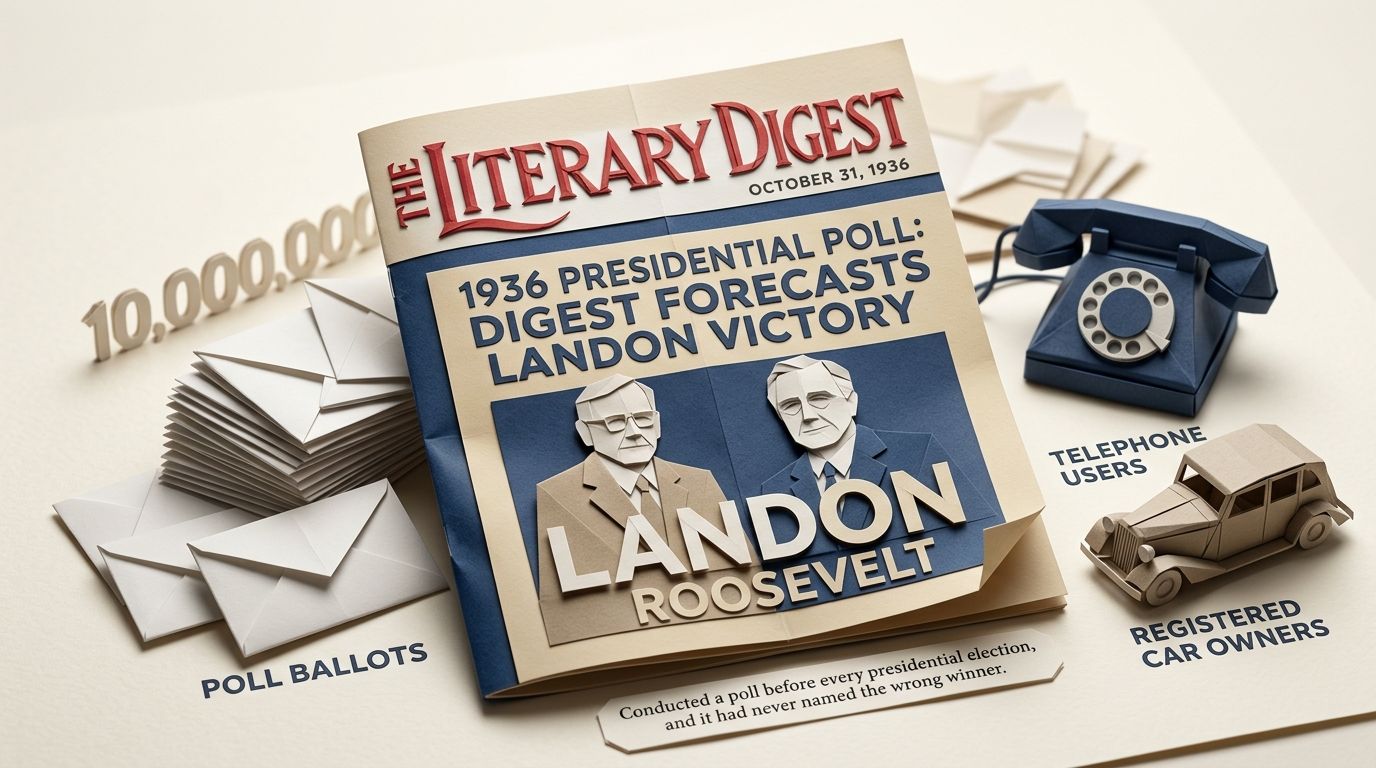
From 1916 onwards, The Literary Digest, an American weekly magazine, conducted a poll before every presidential election, and it had never named the wrong winner. For the 1936 contest it polled ten million people, drawn from its own readers, the lists of registered car owners and telephone users. About 2.38 million ballots came back. The magazine concluded that the Republican Alf Landon would beat the incumbent Franklin D. Roosevelt with 57.08 per cent of the popular vote.
That November Roosevelt won every state except Maine and Vermont and took 60.8 per cent of the vote. The lists had skewed towards people who could afford a magazine subscription, a car or a telephone in the middle of the Great Depression. Later research found the bigger problem was non-response: people who disliked Roosevelt were more likely to send their ballot back. George Gallup called the result from a sample of about 50,000. The Literary Digest ceased publication in 1938.
A huge sample says nothing about who is missing from it. That is the first thing to say about any in-app survey result. It is also why this post argues for asking one question, reading the answers carefully, and acting on them rather than reporting them.
TL;DR: A one-question in-app survey in Customer.io gets answered because it costs the user one tap. Build it with the Buttons component, give each button a descriptive Tracked Name, and trigger it from the event you want to learn about. The taps land in Tracked Responses on the Metrics tab, where since 23 July 2025 an "Analyze Survey" button reads the pattern for you, once two AI settings are on. The tap also arrives as an action_name on an event, so a Wait Until branch can send the next message the same session. The boundary is the sample: only the people who were in the app at that moment and chose to tap. State that bias in every readout, never quote the number as a population figure, and use it to route the next message rather than to write a report. Skip it for long free text, anything legally sensitive, and any question where the answer has to be representative.
Why one question beats ten
The case for a short survey is usually made with response-rate benchmarks. I am not going to quote one, because none of the pages I read gives a figure for in-app surveys specifically.
Qualtrics published its own drop-off thresholds on 2 June 2025: "surveys longer than 12 minutes on desktop and 9 minutes on mobile start to see drastic respondent drop off". The same article says completion rates "begin to decline when the survey has more than three open-text questions". Those are numbers for surveys people have already agreed to start. An in-app message has not been agreed to at all, and every second it asks for is taken from the task the person opened the app for.
So the design question is not how many questions can we fit but what is the least we can ask and still learn something. One question, answered by tapping one of a small row of buttons, is the floor. No typing, no instructions. It also produces an answer you can count, branch on and segment on the moment it arrives, which free text does not.
I wrote about asking customers one question before Customer.io had a component for it. The argument has not changed; the tooling has caught up with it.
What Customer.io actually shipped, and when
The announcement copy and the constraints live on different pages.
17 July 2023: microsurveys. The release note introduced the Rating Scale and Survey components as "preconfigured groups of components that you can add to your message". It also added a Tracked Responses section to the metrics tab for automations and broadcasts. Before that, the note admits, a row of buttons "likely meant adding a series of parent and child components" by hand.
8 July 2024: the editor split. Workspaces that enabled in-app messaging before 8 July 2024 see two editors, Drag-and-drop (new) and Standard (legacy). This post assumes the drag-and-drop editor.
22 July 2025: the legacy editor sunset. From 1 October 2025 the legacy editor became edit-only. From 31 January 2026 it became read-only. Legacy messages in active automations keep working, but to change a button on an old survey you rebuild it. One thing to flag: the note's opening sentence says support ends "January 1, 2026", while its staged list says 31 January. The staged dates carry the detail, so I have used those.
23 July 2025: survey analysis. One day after the sunset note, a feature arrived that "uses AI to provide you with actionable insights from in-app surveys and other in-app messages that capture responses". The release note is two sentences and a screenshot; the constraints are all on the docs page.
| Date | What shipped | The constraint the announcement did not carry |
|---|---|---|
| 17 July 2023 | Rating Scale and Survey components; Tracked Responses on the metrics tab | Only actions with a Tracked Name are counted; an unnamed close button leaves the message at Opened |
| 8 July 2024 | Drag-and-drop editor alongside the legacy editor | Older workspaces see two editors; new surveys belong in the drag-and-drop one |
| 22 July 2025 | Legacy editor sunset announced | Edit-only from 1 October 2025, read-only from 31 January 2026 |
| 23 July 2025 | "Analyze Survey" on the Metrics tab | Needs Customer.io AI on at account level and Survey Analysis on in your personal Experimental Features |
How to build the one-question survey
The build reduces to five decisions.
Trigger from the event, not the calendar. The point of an in-app survey is that it can ask about the thing that just happened. To learn how onboarding felt, trigger on the event that marks onboarding complete. To learn why someone downgraded, trigger on the downgrade event. A survey that fires on a Tuesday because Tuesday is survey day has thrown away the channel's one advantage.
Pick the display for the question's weight. A modal stops the user; an inline message sits in the page and waits. I compared them in inline in-app messages versus modals; a one-question survey rarely earns a modal.
Drag in Buttons. The editor offers rows of 2, 5 or 11 buttons, and the row component lets you change that count. Each button arrives with its Behavior set to Dismiss, and the docs say you "shouldn't change this value unless you want to link your audience somewhere in your app". That default is the one-tap promise: the tap records the answer and closes the message.
Name the buttons for the branch you will build. By default a button's Tracked Name matches its text, so a row of five is named 1 to 5. The docs suggest renaming them so the data reads properly, Very Dissatisfied for 1 and Very Satisfied for 5. For NPS they go further: instead of tracking 0 to 10 and building eleven branches, set the tracked names to detractor, passive and promoter and build three. The name labels the metric and it is the value your automation will branch on.
Leave the close button unnamed, unless you want to catch dismissals. The Close Button has no tracked name by default. Any action with a Tracked Name counts as a Clicked as well as a tracked response, so naming the close button records a click every time someone dismisses the survey. The exception: if you want people who dismiss the survey to move on without waiting out a timer, name the close button and branch on it.
Where the taps land, and what the numbers mean
Every tap on a named button appears under Tracked Responses on the Metrics tab, organised by message and action name. Before reading it, read the four statuses around it, because two do not mean what their names suggest.
| Status | What the docs say it means | What it means for your survey |
|---|---|---|
| Sent | Customer.io created the delivery; it "hasn't left Customer.io until it's been Opened" | The person qualified but may never have seen the question |
| Opened | The message "has been delivered and displayed to a person" | The question was on screen; nobody had to open anything |
| Clicked | The person clicked an action with a Tracked Name | An answer was recorded; a dismissal with an unnamed close button stays Opened |
| Failed | The message could not render, most commonly unresolved Liquid without a fallback | The question never reached the screen; look at your Liquid |
The gap between Sent and Opened is people who never reached the right page before the message expired. The gap between Opened and Clicked is people who saw the question and did not answer. Both gaps are part of the result. Opened means displayed catches people out on every in-app report, and a survey is where it does the most damage, because it changes the denominator under your response rate.
The docs also say you "should probably consider metrics incomplete until your message expires and your in-app message stops being sent". Do not read the survey until the expiry has passed.
How the tap triggers the next message
This is the step that separates a survey from a report. The visual editor docs say the Tracked Name "appears as action_name in events sent to Customer.io". You can "use this value to trigger follow-ups or other automations based on how people interact with your messages". The multi-step page adds that you can "trigger follow-up automations and add people to segments based on the tracked name".
Inside the same automation, the Surveys page gives the exact mechanism. After the in-app message, add a Wait Until block. Add a condition of type Message, choose the survey message, set the condition to is clicked, and set the Tracked name you want to act on. Repeat for each answer, and each becomes its own branch. Then set a Max Time for people who never answer; the docs suggest matching it to the message's expiry.
Three patterns fall out of this. A detractor tap sends a task to support the same day. A promoter tap sends a review request; the docs' own example is a 1 to 5 rating where a 5 earns a thank-you and a 1 earns a request for feedback. And because the tap arrives as an event with an action_name, a segment can be built on it, so later campaigns can include or exclude people by how they answered.
You can also answer inside the message. A multi-step message lets the tap show a second step, a thank-you or a pointer to where longer feedback is welcome, with no automation logic. It still counts as one message with one Open and one Click, while Tracked Responses shows the steps people reached.
What survey analysis does, and what it needs first
The "Analyze Survey" button sits under Tracked Responses on the Metrics tab. The feature "observes the responses to your survey (or any set of in-app messages with multiple buttons) and provides you with insights based on responses to your messages". So it reads any in-app message with multiple named buttons, not only the Survey component.
Four constraints from the docs page, none of which is in the release note:
- Two settings, at two levels. An Account Admin must enable Customer.io AI in AI settings, and you must enable Survey Analysis in Experimental Features. The docs say Experimental Features "are personal settings; this only controls whether AI-powered in-app survey analysis is available to you, not your teammates".
- Live automations and API-triggered broadcasts. The docs say you "can run a survey on any live automation or API-triggered broadcast that contains in-app messages".
- It reads your naming. The analysis uses "the contents of your message, the names and descriptions of your automation, and the Tracked Name values for your in-app buttons". Buttons named 1 to 5 in an automation with no description will get a worse reading than
Very DissatisfiedtoVery Satisfiedin one with a real name. - It tells you when it does not have enough. A data quality assessment says whether there is enough response data. The feature will "provide analysis in any case" while flagging low confidence. Treat that flag as an instruction to wait.
On cost: the survey analysis page says nothing about AI credits. The AI credits page carries the rule that settles it: "Only LLM actions consume AI credits in your account". Survey analysis is not an LLM action in a workflow, so under the docs' own rule it does not draw down credits, though the page's list of credit-free features does not name it either. If your team is budgeting credits, the AI credits cost forecast covers what does.
The boundary: who is not in your sample
Back to the Literary Digest. Its ten million ballots went to people with a magazine subscription, a car or a telephone. Its 2.38 million replies came disproportionately from people who wanted Roosevelt out. Neither filter showed in the headline.
An in-app survey has the same two filters, and both are stronger than they look.
- Who saw it. Only people who opened the app and reached the right page before the message expired: your most engaged users on their best days. Someone drifting towards churn, whose opinion you most need, is the person least likely to trigger the message.
- Who tapped. Of those who saw it, the ones who felt strongly enough to answer. The Opened-to-Clicked gap is the part of your audience whose view you do not have.
So three rules for any readout:
- State the denominator. Not 40 per cent of users are satisfied but of the people who completed onboarding this month, saw the question and chose to answer, this share tapped satisfied.
- Never quote the result as a population figure. The people who tapped are your customer base filtered twice, and the filters correlate with the thing you are measuring. A cohort view, which I cover in the cohort analysis guide, is the honest way to compare survey answers over time: same trigger, same window, same denominator.
- Use the answer to route, not to report. A
detractortap is a fact about one person and a good reason to send them something. It is not evidence about your product until you know who did not tap.
When not to use a one-question in-app survey
- When you need free text at length. The visual editor docs show how to embed a Typeform inside a message, then list the limitations. The form cannot dismiss the message, and "form responses aren't fed into CIO automatically like other actions in your messages". That is a form project, and the native versus connected forms post is the place to plan it.
- When the subject is legally sensitive. Consent, health, financial circumstances, anything a regulator would want a record of. A button tap that dismisses a message is not a defensible record of a considered answer.
- When the answer has to be representative. Pricing research, a decision about a whole segment, anything you would present as our customers think. The in-app sample cannot carry that weight, and AI analysis does not change the sample.
For everything else, the question you can ask in one tap, at the moment it happened, to the person it happened to, is the best research instrument in the workspace.
If you want a second pair of eyes on which one question to ask and how to read what comes back, that is work we do under email marketing consulting. Send us an enquiry and tell us the event you want to learn about.
Frequently asked questions
How do I create a survey in a Customer.io in-app message?
Drag the Buttons component into an in-app message built in the drag-and-drop editor, and each button arrives set to Dismiss with a Tracked Name matching its text. The docs offer rows of 2, 5 or 11 buttons. Rename the tracked names to values you can branch on, and trigger the message from the event you want to ask about.
Does the Customer.io survey analysis feature use AI credits?
Not under the docs' own rule: "Only LLM actions consume AI credits in your account", and survey analysis is a button on the Metrics tab, not an LLM action in a workflow. The survey analysis page itself says nothing about credits either way.
Why can't I see the survey analysis button in Customer.io?
Two settings have to be on. An Account Admin enables Customer.io AI in AI settings, and you enable Survey Analysis in your own Experimental Features. The second is a personal setting, so a teammate switching it on does not switch it on for you. The button then appears under Tracked Responses on a live automation or API-triggered broadcast that contains in-app messages.
Can a Customer.io in-app survey answer trigger another message?
Yes. The Tracked Name arrives as an action_name on an event. Inside the automation, a Wait Until block with a Message condition set to is clicked and a specific tracked name sends people down a branch per answer. Add a Max Time for people who never answer. You can also add people to a segment based on the tracked name.
Why does my in-app survey show Opened but no Clicked?
Opened means the message was displayed; nobody has to do anything for that status. Clicked is only recorded when someone taps an action that has a Tracked Name. If people are dismissing the survey with an unnamed close button, every one of them stays at Opened. Name the close button if you want dismissals to show up.
Is an in-app survey result representative of my customers?
No. The people who answered were in the app, reached the right page before the message expired, and chose to tap, and each of those filters correlates with engagement. Report the result with its denominator, compare it by cohort over time, and use it to route the next message rather than to describe your customer base.
Can I collect free-text feedback in a Customer.io in-app message?
Not with the native components, which are buttons. The docs show how to embed a third-party form such as Typeform in the message's HTML view, but the form cannot dismiss the message and its responses are not fed into Customer.io automatically. For text at length, plan a form project rather than a microsurvey.
Sources
- Customer.io, In-app microsurveys, release note, 17 July 2023.
- Customer.io, Get AI-powered insights from your in-app surveys, release note, 23 July 2025.
- Customer.io, Sunsetting the legacy in-app editor, release note, 22 July 2025.
- Customer.io, In-app survey analysis, documentation, updated 1 September 2026.
- Customer.io, Surveys, documentation, updated 1 September 2026.
- Customer.io, In-app metrics, documentation, updated 14 September 2026.
- Customer.io, In-app visual editor, documentation, updated 1 September 2026.
- Customer.io, Multi-step messages, documentation, updated 1 September 2026.
- Customer.io, AI credits, documentation, updated 14 September 2026.
- Qualtrics, Emily Geisen and Ziyun Tie, 4 tips for preventing drop-offs in surveys, 2 June 2025.
- Wikipedia, The Literary Digest, read 21 September 2026.
Want this working in your Customer.io workspace?
It's what we do all day for SMBs—strategy, automations, deliverability and hands-on execution.
See how we work as a Customer.io agency →